


.gif)
.gif)
.gif)











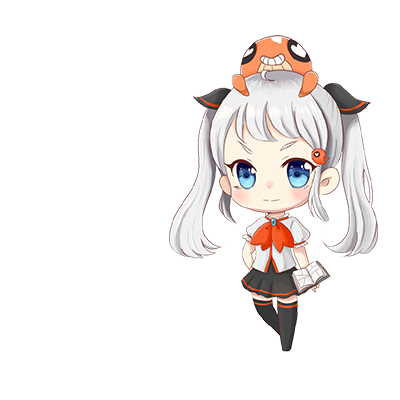


Breah (The Blimp ?) | VR Inflation Avatar ?
A playful, inflatable VR avatar with cute style, and full customization for any vibe! Let your personality expand—literally—with Breah!
Step into a playful, bouncy world with Breah, the ultimate body inflation avatar for VRChat! Designed for fun, expressive interactions and maximum customization, Breah features dynamic inflation controls, smooth physics, and vibrant stylization that makes her stand out in any virtual crowd. Whether you're exploring new worlds or performing for friends, Breah brings a bubbly charm and unique flair to your VR experience.
Features:
Fully rigged for VR or Desktop
Customizable inflation stages and toggles
Dynamic jiggle and bounce physics
Expressive facial blendshapes and emotes
Perfect for RP, social meetups, and content creation
Texture Memory: 105mb
Let your personality expand—literally—with Breah! ?
Before you dive in, please take a minute to read over these Terms of Service. By downloading or using this avatar, you agree to everything below.
-Terms of Service-
? Usage Rights
✔️ You CAN:
Use the avatar for personal use in VRChat/CVR.
Customize the avatar for yourself (tweaking textures, changing clothes, editing the mesh, etc.).
Upload to your VRChat/CVR account(s).
Use it in streams, videos, and social content (Credit and/or a tag on posts is much appreciated!).
❌ You CANNOT:
Resell, redistribute, or share the avatar or its assets, even if edited.
Upload for others or give out edited versions.
Claim the design or model as your own.
Use the avatar for anything hateful, illegal, or discriminatory.
?️ Commercial Use
This avatar is for personal use only! Feel free to use it for VTubing, or other content-related purposes!
? Edits & Commissions
You’re welcome to commission someone to edit/customize the avatar for your personal use, but make sure both of you own or have permission to use the original model. The finished avatar should not be shared with others—even if it’s customized.
? Credit
If you show off the avatar in videos, streams, or social media, credit is always appreciated! Please link back to the product page or my social handle. It helps support my work and keeps things fair.
? Refund Policy
Because this is a digital product, all sales are final. If you’re having issues, feel free to contact me for help—I want you to have a good experience.
? DMCA & Enforcement
I work hard on these avatars, and I do take copyright seriously. Unauthorized distribution, commercial use without a license, or violations of these terms may result in a DMCA takedown or other actions.
By purchasing or downloading this avatar, you confirm that you’ve read, understood, and agreed to these terms.
Thanks for supporting my work and have fun! ?
DOWNLOAD LINK: https://drive.proton.me/urls/R2XVZPTEMC#mUpycTdjH1P5
--Installation Instructions--
1. Install Unity
Download and install Unity version 2022.3.22:
https://unity.com/releases/editor/whats-new/2022.3.22
2. Download the VRChat Creator Companion (VCC)
https://vrchat.com/download/vcc
3. Launch VCC
Click the “Create New Project” button in the top-right corner.
4. Set Up the Project
Select “Unity 2022 Avatar Project”, name your project, choose a location on your computer, and click “Create Project.”
5. Open Project Manager
Go to the Projects tab and click “Manage Project.”
6. Install the following packages:
Update VRChat SDK Base and VRChat SDK Avatars (included with VCC)
VRCFury: https://vrcfury.com/download/
VRCT – Jerry's Templates: https://adjerry91.github.io/VRCFaceTracking-Templates/
Poiyomi Shaders: https://poiyomi.github.io/vpm/
Wholesome SPS Configurator: https://wholesomevr.github.io/SPS-Configurator/
GogoLoco: https://spokeek.github.io/goloco/
7. Open the project
Once the packages are installed, launch the Unity project.
8. Import the avatar package
Go to Assets > Import Package, import Breah.unitypackage, and double-click “Open Me!”
9. Open the VRChat SDK Control Panel
Click the “VRChat SDK” menu at the top of Unity, then select “Show Control Panel.”
10. Log in to your VRChat account
Navigate to the Builder tab.
11. Fix any alerts
If any warnings appear (e.g., Streaming Mip Maps), click “Auto-Fix.”
12. Upload your avatar
Click “Upload” — and you're done!
Thanks for supporting my work and have fun! ?